QR Payments
QR codes have already been widely adopted across many different areas of our life. They can be used to improve payments, making transactions more convenient, secure, and efficient.
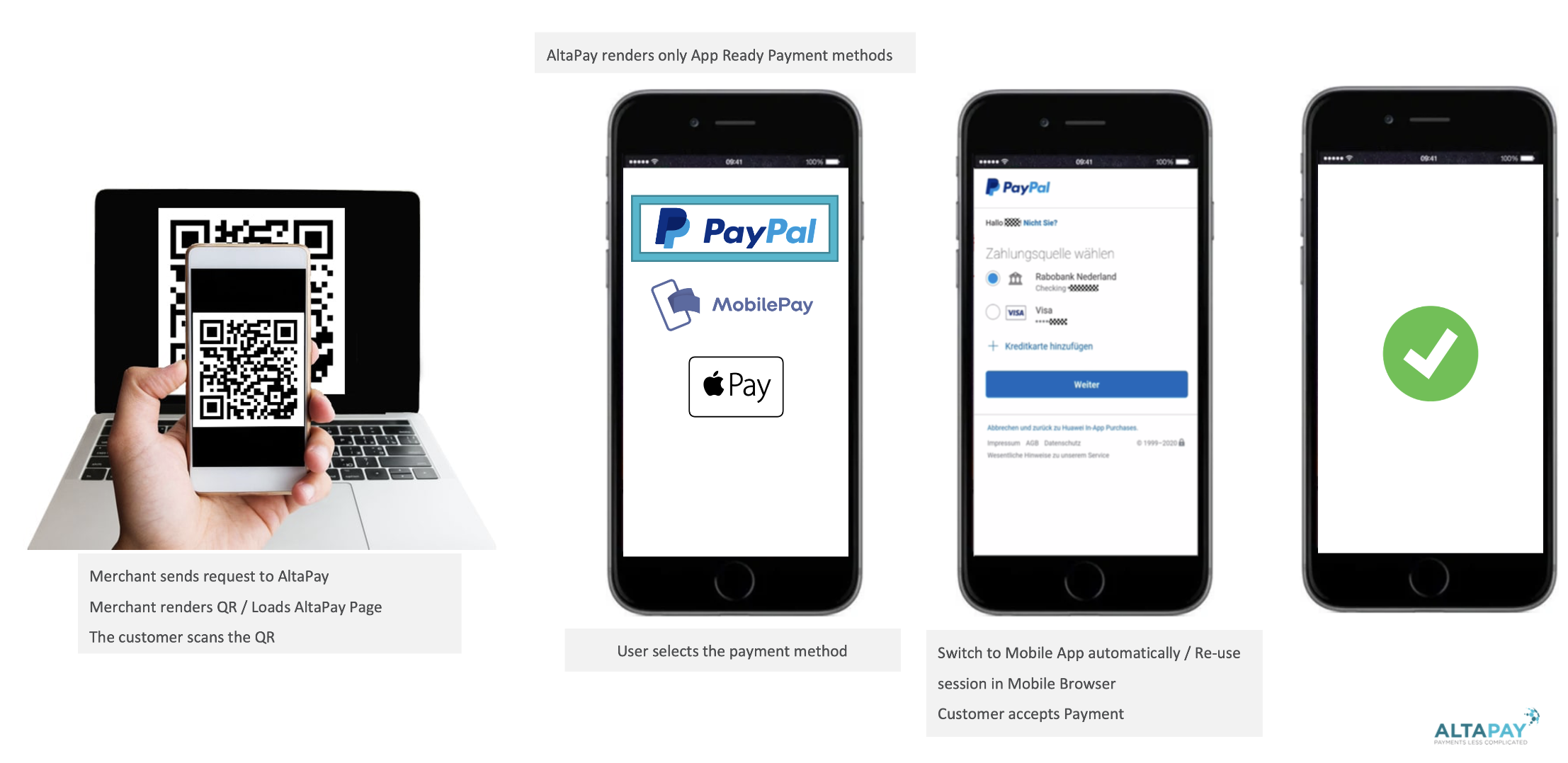
QR Payments intend to leverage the applications installed in the consumer's phone, and cookies available in their browser instance, so the authentication of the consumer and authorisation of the payment is done at the tap of a finger.
QR Codes can be used for both online and in-store, allowing customers to pay in a secure and easy way by scanning the QR at the Online Checkout or Checkout Counter respectively, and finish the payment on their phone. Additionally, you can take full control of the landing page, allowing you to recognise the customer utilising cookies, and provide additionally benefits like loyalty programs.
Dynamic QR Codes
In this scenario, the merchant generates a dynamic QR code that will be associated with a specific customer's order. This is the go-to solution for online shops, but it can be used for in-store payments as well if there is a screen at the checkout counter that could display a QR code.
The process is consisting of the following steps:
sequenceDiagram
  autonumber
  participant Customer Phone
  participant Merchant Cashier
  participant Merchant System
  participant Checkout

  Merchant Cashier->>+Checkout: Request QR code with order information
  Checkout-->>-Merchant Cashier: QR code

  Customer Phone->>+Merchant Cashier: Scan QR code
  activate Customer Phone
  Merchant Cashier-->>-Customer Phone: QR  link

  Customer Phone->>+Merchant System: Follow QR link
  Merchant System-->>-Customer Phone: Merchant QR Page

  Customer Phone->>+Checkout: Initialize payment from QR and inject payment methods
  Checkout-->>-Customer Phone: Order details and available payment methods

  Customer Phone->>+Checkout: Select payment method and proceed with payment
  activate Checkout
  Note right of Merchant System: Processing flow <br> started
  deactivate Checkout
  deactivate Customer Phone
1. Generate and display unique QR code
The merchant requests a unique QR code for each order (1). This QR code can be generated on front-end using our injectQR function from JS SDK or via HTTP REST API. The QR code (2) will contain a session identifier correlated with a specific order; hence we can process all the details on our side. Once generated QR code is displayed at the checkout counter or, in the case of an online shop, on the checkout webpage.
2. Customer scans QR code
The customer uses their smartphone to scan the QR code (3) from the checkout counter or checkout page and open the webpage link (5) which leads to the merchant's QR payment page (6).
3. Load payment details and available payment methods
Once the merchant's QR payment page is loaded, AltaPay JS SDK initialises payment from QR (7) and presents order details and available payment methods (8) to the customer. For more details see: initFromQR docs
4. Customer selects payment method and proceeds with payment
Now, the customer can select the payment method and proceed with the payment (9) in the same way as regular checkout flow.
Static QR Codes (Coming Soon)
In this scenario, the QR code is static and indented to be displayed at the checkout counter in the store. The QR code is associated with a point of sale and can be used for multiple orders.
The difference in the payment flow is that when a cashier submits a customer's order, the merchant system will associate it with an existing QR code instead of generating a new one. The whole flow looks as follows:
sequenceDiagram
  autonumber
  participant Customer Phone
  participant Merchant Cashier
  participant Merchant System
  participant Checkout

  Merchant Cashier->>+Checkout: Request static QR code
  activate Merchant Cashier
  Checkout-->>-Merchant Cashier: QR code
  Merchant Cashier->>Merchant Cashier: Print and place QR code on the counter
  deactivate Merchant Cashier

  Note right of Merchant System: Can occur before or after <br/>customer scans the QR code
  par Cashier submits customer's order
    Merchant Cashier->>Merchant System: Submit customer's order
    activate Merchant Cashier
    activate Merchant System
    Merchant System-->+Checkout: Add order info to QR
    deactivate Merchant Cashier
    Checkout-->>-Merchant System: Session ID
    deactivate Merchant System
  end

  Customer Phone->>+Merchant Cashier: Scan QR code
  activate Customer Phone
  Merchant Cashier-->>-Customer Phone: QR  link

  Customer Phone->>+Merchant System: Follow QR link
  Merchant System-->>-Customer Phone: Merchant QR Page

  Customer Phone->>+Checkout: Initialize payment from QR and inject payment methods
  par Cashier submits customer's order
    Merchant Cashier->>Merchant System: Submit customer's order
    activate Merchant Cashier
    activate Merchant System
    Merchant System-->+Checkout: Add order info to QR
    deactivate Merchant Cashier
    Checkout-->>-Merchant System: Session ID
    deactivate Merchant System
  end
  Checkout-->>-Customer Phone: Order details and available payment methods

  Customer Phone->>+Checkout: Select payment method and proceed with payment
  activate Checkout
  Note right of Merchant System: Processing flow <br> started
  deactivate Checkout
  deactivate Customer Phone
1. Generate and display QR code for point of sales
The merchant requests a QR code for a specific point of sale (1). This QR code can be generated using our HTTP REST API. The QR code (2) will contain its unique identifier, which will be used in the future in order to associate it with the customer's order. Once generated QR code can be displayed on the screen or printed and placed on the counter (3).
2. Finalize customer's order and associate it with QR code
Once the cashier submits customer's order (4), the merchant system will associate it (5) with the existing QR code using our HTTP REST API. This action could be performed before or after the customer scans the QR code.
3. Customer scans QR code
The customer uses their smartphone to scan the QR code (7) from the checkout counter or checkout page and open the webpage link (9), which leads to the merchant's QR payment page (10).
4. Load payment details and available payment methods
Once the merchant's QR payment page is loaded, AltaPay JS SDK is initializing payment from QR (11).
If the customer scans the QR code before the order is associated with it, the AltaPay JS SDK will automatically
wait for order data to be available. Once order data is available, AltaPay JS SDK will load and present order details
and available payment methods (15) to the customer.
5. Customer selects payment method and proceeds with payment
Now, the customer can select the payment method and proceed with the payment (16) in the same way as the regular checkout flow.